Get Support.
Mail Shepherd 3.0 (build 454) · Updated October 21, 2026
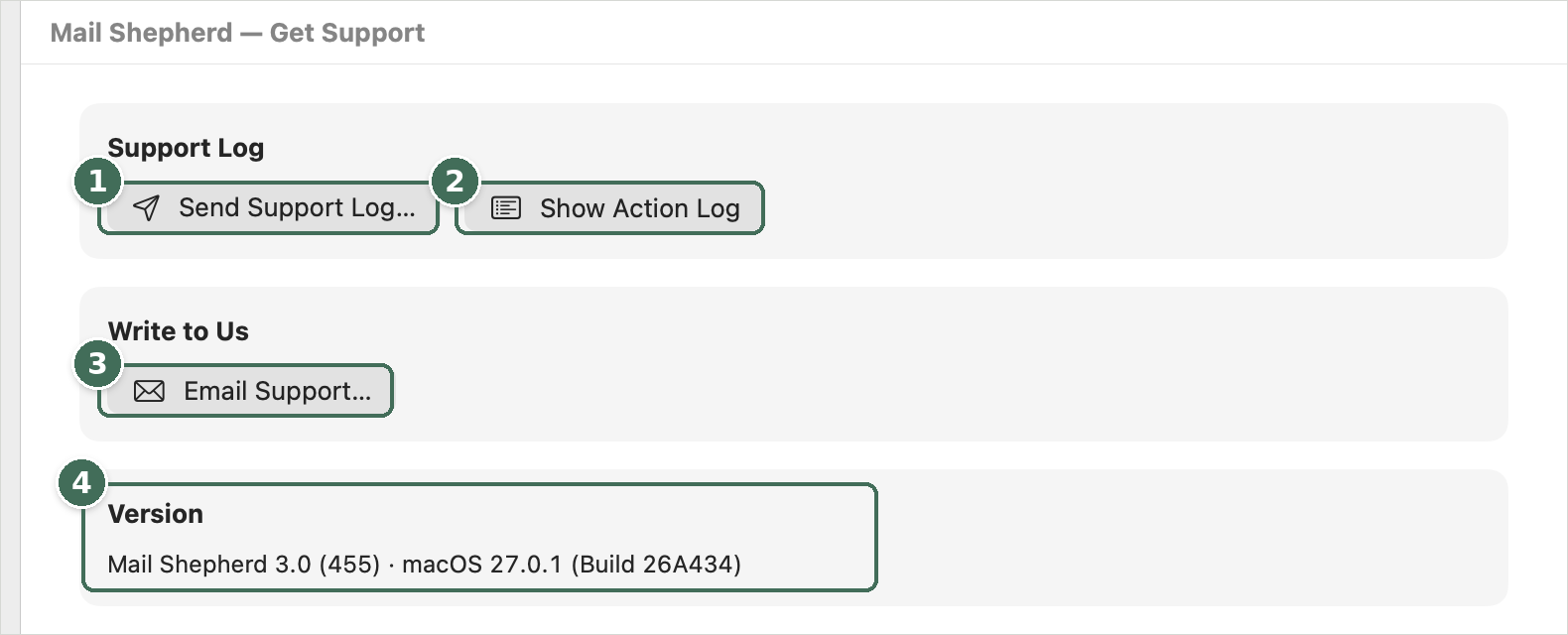
- Send Support Log… opens a message in Mail with the log attached.
- Show Action Log opens the Action Log, to look it over first.
- Email Support… starts a message without the log.
- Your Mail Shepherd and macOS versions, for support.
Support Log
Send Support Log… opens a new message in Mail to mailshepherd-support@take66.ai with the latest Action Log attached and the Mail Shepherd and macOS versions filled in. Review it and click Send in Mail; nothing is sent until you do. The log includes senders, subjects and dates, never message bodies or attachments. Show Action Log opens the Action Log, so you can look at it first. If the message can’t be opened, a warning icon appears beside the buttons.
Write to Us
Email Support… starts a message to mailshepherd-support@take66.ai without the log, with the versions filled in. Say what you did, what you expected and what happened, and leave out anything private.
Version
Shows the Mail Shepherd version and build and the macOS version, such as “Mail Shepherd 3.0 (408) · macOS 26.0”, for you to copy into a message. About Mail Shepherd, in the Mail Shepherd menu or from Take66 Software at the bottom of the sidebar, shows it too.
Help and updates
Help → Mail Shepherd Help (⌘?) opens this help, and Help → Get Support opens this page.
Mail Shepherd → Check for Updates… asks take66.ai which build is current. When a newer one is out, Get the Update opens the Mail Shepherd page on take66.ai, where you can request a new download link if yours no longer works. Mail Shepherd also checks quietly when it opens, and mentions each new build only once.
Was this page helpful? Tell us.