Getting Started.
Mail Shepherd 3.0 (build 454) · Updated October 21, 2026
The sidebar
- Get Started: Setup, everything Mail Shepherd needs from macOS and Mail.
- Clean Up: Sweep, Review Blocked and Review Junk.
- Lists: Blocked Senders, Blocked Domains and Allowed Domains.
- Automate: Automate, with Auto-Sweep and its Recent Changes.
- At the bottom: the Action Log and Get Support. Take66 Software, under them, opens About Mail Shepherd.
The pages from Setup to Automate have Back and Next at the bottom, so you can work through them in order. The first time, Mail Shepherd opens on Setup. After that it opens on the page you last used, or on Setup when a required setting isn’t on.
Your first run
Transcript
- Start on the Sweep page. A Sweep checks every message in Junk and Trash against Mail's blocked list and your Blocked Senders.
- Click Sweep. It doesn't use Mail's window, so you can keep using Mail. The counts fill in as it goes, and the Sweep button becomes Stop.
- It marks mail from blocked senders read, and moves the rest of Junk to Trash, marked junk. Then it handles mail from your Blocked Domains, including in your Inboxes.
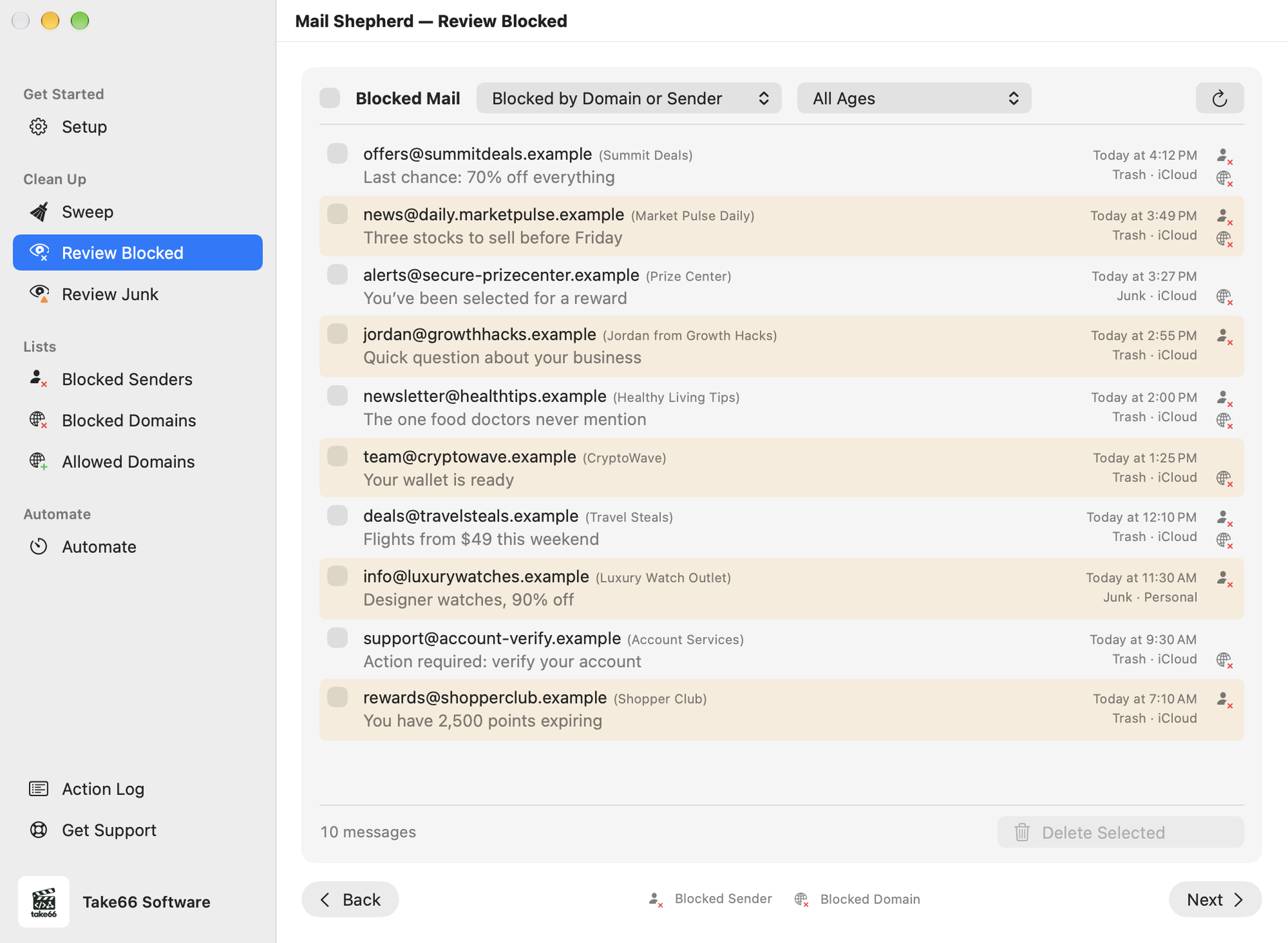
- When it's finished, the results show what it did in each mailbox. Then look over what it found on Review Blocked and Review Junk.
- Open Setup and work down the list until every required row has a green check. Only Open at Login is optional.
- Open Mail, then click Sweep on the Sweep page. It marks mail from blocked senders read, moves the rest of Junk to Trash, and handles your Blocked and Allowed Domains.
- Go through Review Blocked and Review Junk: delete what you don’t want, move what you do want to the Inbox, and block senders or domains you never want to hear from.
- Optional: add domains on Blocked Domains and Allowed Domains, and turn on Auto-Sweep on Automate so Mail Shepherd sweeps on its own.
Keep using Mail. A Sweep works in the background, without Mail’s window. Only the delete buttons work in Mail’s window: they ask first, and while they run, don’t click, type or switch apps until Mail Shepherd is finished. ⌘. stops a Sweep or a Review action after the current step.
After that
Run a Sweep whenever junk piles up, or let Auto-Sweep do it, then review what it found. Every Sweep checks every message in Junk and Trash.
Mail Shepherd doesn’t tell you when something is finished: the page simply updates. If something goes wrong, an orange warning icon appears on the page; point at it to read the problem, or click it to open the Action Log.
Was this page helpful? Tell us.