Setup.
Mail Shepherd 3.0 (build 454) · Updated October 21, 2026
Setup lists everything Mail Shepherd needs, one row each. On the left of a row are its status icon (see Icons) and name, with why it’s needed underneath; on the right, its button, with how to turn it on or off underneath. While Setup is showing it checks again every 2 seconds, so a change you make in System Settings shows right away. Mail Shepherd never needs your email password.
The first four rows are required. While one of them isn’t on, Setup’s row in the sidebar shows an orange warning triangle, the Sweep page says “Setup needs attention” with Open Setup, and Mail Shepherd opens on Setup when you launch it. Mail Shepherd → Settings… (⌘,) also opens Setup.
Transcript
- Setup lists what Mail Shepherd needs from macOS, with why each one is needed. Here, Accessibility isn't allowed yet. It's needed for Block Sender and deleting messages.
- Click Open Settings. System Settings opens to the list of apps allowed to control your Mac.
- Turn on Mail Shepherd. macOS may ask for your password or Touch ID.
- Back in Mail Shepherd, Accessibility has a green check. The page updates on its own. Automation turns on the first time you run a Sweep.
- Go to Sweep and click Sweep. The first time, macOS asks whether Mail Shepherd can control Mail.
- Click Allow. Setup now shows a green check for everything Mail Shepherd needs.
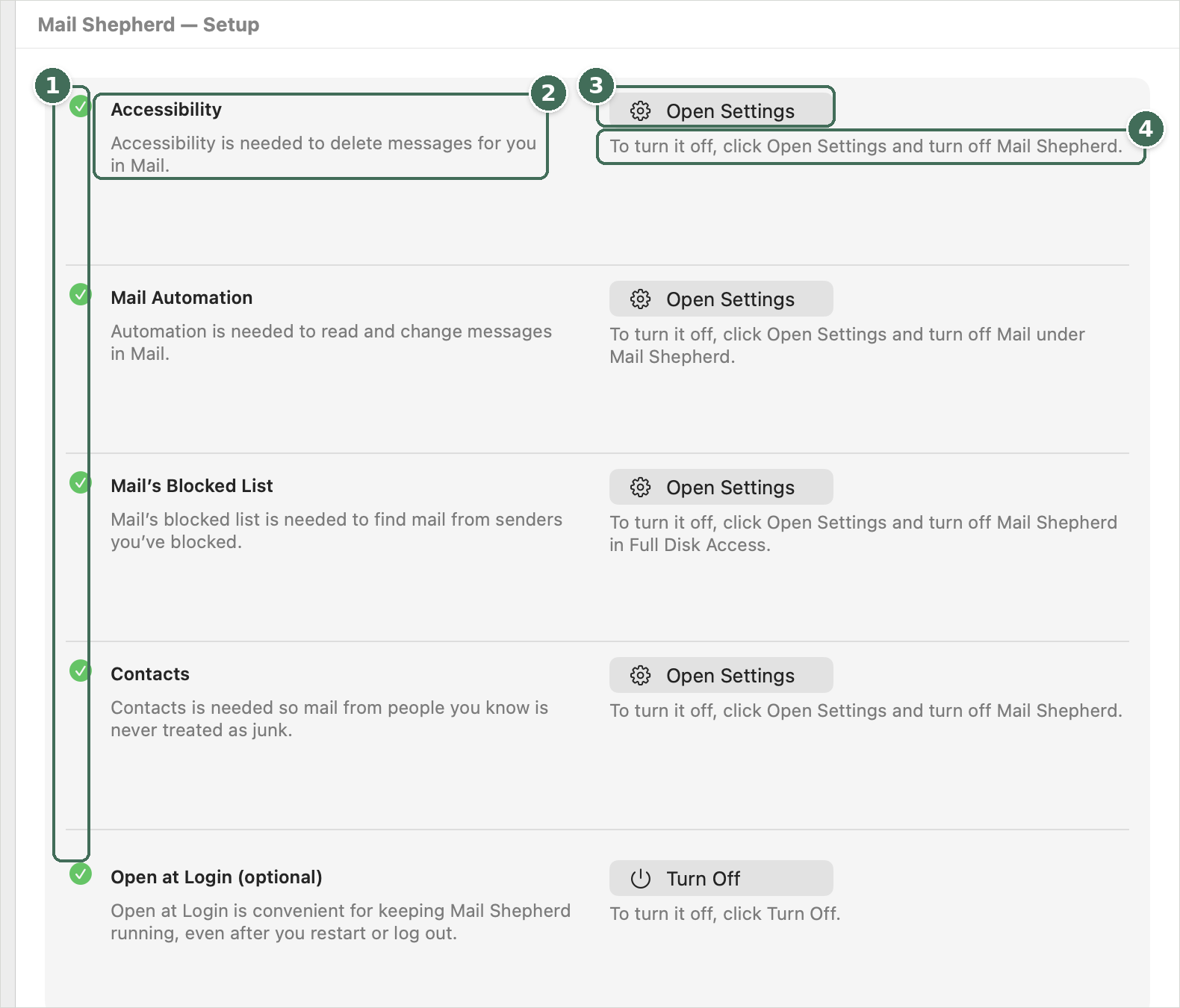
- Status icons: a green check means ready; a red icon means a required setting is off.
- Each item, and why Mail Shepherd needs it.
- Open Settings opens the macOS setting.
- How to turn it on or off.
Accessibility
Why it’s needed: to delete messages for you in Mail. Delete Selected on the Review pages and Delete Permanently on a message’s details select the message in Mail’s window and choose Mail’s own Edit → Delete. Open Mail’s Blocked List… on Blocked Senders also uses it to open the right tab of Mail’s Settings. A Sweep and Block Sender don’t need it, and it never reads message bodies.
To turn it on:
- Click Open Settings.
- System Settings opens to the list of apps that can control your Mac (Privacy & Security → Accessibility; newer versions of macOS call it Device Control and Data Access). Turn on Mail Shepherd. If it isn’t listed, click + and add it from Applications.
- If it’s on but Setup still shows the red icon, select it, click −, and add it again.
Mail Automation
Why it’s needed: to read and change messages in Mail. Mail Shepherd asks Mail to make every change: mark messages read, move Junk to Trash and mark it junk, move mail you allow to the Inbox, handle mail from your Blocked Domains, and list Junk and Trash for the Review pages.
To turn it on: macOS asks once, the first time Mail Shepherd talks to Mail. Until then the row shows a grey clock: run a Sweep and click OK when macOS asks to let Mail Shepherd control Mail. If you turned it off, click Open Settings and turn on Mail under Mail Shepherd (Privacy & Security → Automation).
Mail Shepherd uses Mail’s built-in scripting. It reads senders, subjects, dates, and read, junk and flag status, never message bodies, and it never changes a flag.
Mail’s Blocked List
Why it’s needed: to find mail from senders you’ve blocked. Mail’s blocked list (Mail → Settings → Junk Mail → Blocked, shared with Messages and FaceTime) is kept where only apps with Full Disk Access can read it. A Sweep, the Review pages, Blocked Senders, Blocked Domains and the check before each delete all use it, together with Mail Shepherd’s own Blocked Senders. A Sweep can’t run without it.
To turn it on: click Open Settings and turn on Mail Shepherd in Full Disk Access (if it isn’t listed, click + and add it from Applications). Mail Shepherd only reads the list; it never changes it.
Contacts
Why it’s needed: so mail from people you know is never treated as junk. Mail from a sender in your contacts is left off Review Junk and isn’t caught by a Blocked Domain, and a Sweep moves it from Junk to your Inbox instead of to Trash (a blocked sender is still blocked). Blocked Domains and Allowed Domains also use it to list your contacts’ domains.
That’s why it’s required. Without it, a Sweep and Auto-Sweep don’t run, Blocked Domains and Allowed Domains say “This page requires access to Contacts.” with Open Setup, and Block Sender, the Block Domain buttons and Add to Existing Contact… on a message’s details are dimmed.
To turn it on: click Allow, then click OK when macOS asks. If you turned it off earlier, the button is Open Settings: turn on Mail Shepherd in Privacy & Security → Contacts. Mail Shepherd reads only your contacts’ email addresses, and saves nothing from Contacts.
Open at Login (optional)
Keeps Mail Shepherd running, even after you restart or log out, which is handy with Auto-Sweep. Click Turn On or Turn Off. While it’s off, the row shows an orange triangle; that’s fine, since it’s optional. If it can’t be changed, a warning icon appears beside the button; click it to see why in the Action Log.
Was this page helpful? Tell us.