Review Blocked.
Mail Shepherd 3.0 (build 454) · Updated October 21, 2026
Review Blocked lists messages in Junk and Trash from blocked senders (on Mail’s blocked list or Mail Shepherd’s Blocked Senders) or from your Blocked Domains, newest first. Each row shows the sender’s address with their name in parentheses, the subject, when it arrived, and its mailbox and account. On the right, a person with a red × beside the first line means the sender is blocked, and a globe with a red × beside the second line means the domain is blocked; either or both can show. The legend at the bottom of the page says the same.
Transcript
- Review Blocked lists mail in Junk and Trash from blocked senders, or from your Blocked Domains.
- Check the messages you want to delete.
- Click Delete Selected. The count on the button shows how many. Mail Shepherd asks first: messages in Trash are deleted for good, and messages in Junk move to Trash.
- Click Delete Messages. While it works in Mail's window, don't click or type.
- The deleted messages are gone from the list. Each one is recorded in the Action Log.
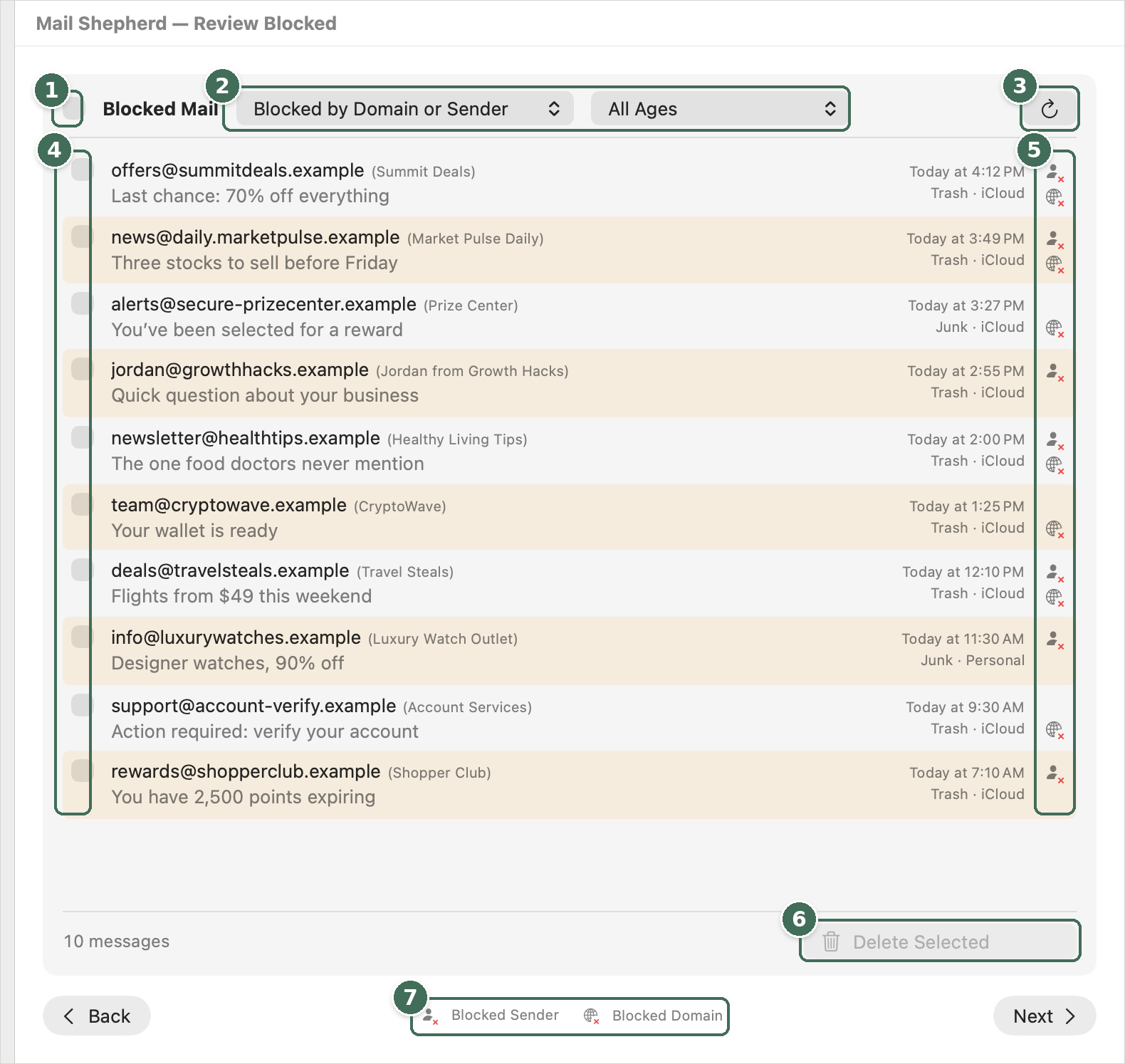
- Selects or clears every message.
- Which blocked mail to show, and how old.
- Refresh reads Junk and Trash again. While it reads, it becomes Stop.
- Checkboxes select messages; click anywhere else on a row to see its details.
- Why each message is listed: a blocked sender, a Blocked Domain, or both.
- Delete Selected deletes the checked messages after you confirm; the count shows how many.
- The legend for those icons.
The list
- The header has a checkbox that selects all or none, the title Blocked Mail, two menus and Refresh.
- The first menu shows Blocked by Domain or Sender (all of it), Blocked by Sender Only, Blocked by Domain Only or Blocked by Domain and Sender. The second shows All Ages, or only mail More Than 1 Day Old, More Than 3 Days Old or More Than 5 Days Old. Each choice shows how many messages it matches, and a message a menu hides is unselected.
- Refresh reads Junk and Trash again. While the list is being read, it turns into Stop (⌘.). The list is read when you open the page, and only while Mail is open: otherwise the page says “Open Mail to see the messages to review.”
- Click a row (anywhere but its checkbox) to see its details in place of the list.
Delete Selected
The footer shows how many messages are listed and Delete Selected, with how many you’ve checked, such as Delete Selected (3). It asks first (“Delete 3 Messages?”); click Delete Messages to go ahead. Messages in Trash are deleted permanently; messages in Junk move to Trash. Only messages the menus show, and that are still from a blocked sender or Blocked Domain, are deleted.
While it works, its progress and Stop take the button’s place. It uses Mail’s window, so don’t click, type or switch apps until it’s finished; then Mail Shepherd puts Mail back on its Inbox and comes back to the front. There’s no message when it’s done: the deleted messages are simply gone from the list. If something couldn’t be deleted, a warning icon appears in the footer; click it to open the Action Log.
Messages deleted from Trash are gone for good. See Deleting and Safety.
Was this page helpful? Tell us.