Message Details.
Mail Shepherd 3.0 (build 454) · Updated October 21, 2026
Click a row on Review Blocked or Review Junk to see the message’s details. They take the place of the whole page; Done (Esc) takes you back to the list. Each Review page remembers the message you had open while you go to other pages; a Sweep takes both back to their lists.
Transcript
- Review Junk lists the rest of your junk: junk that isn't from a blocked sender or domain.
- Click a message to see its details. They show why it's listed, and ways to block or allow it.
- Click Block Domain. The domain is added to your Blocked Domains right away.
- Click Done. The message leaves Review Junk, and is now listed on Review Blocked.
- The domain is on your Blocked Domains, so every Sweep handles its mail.
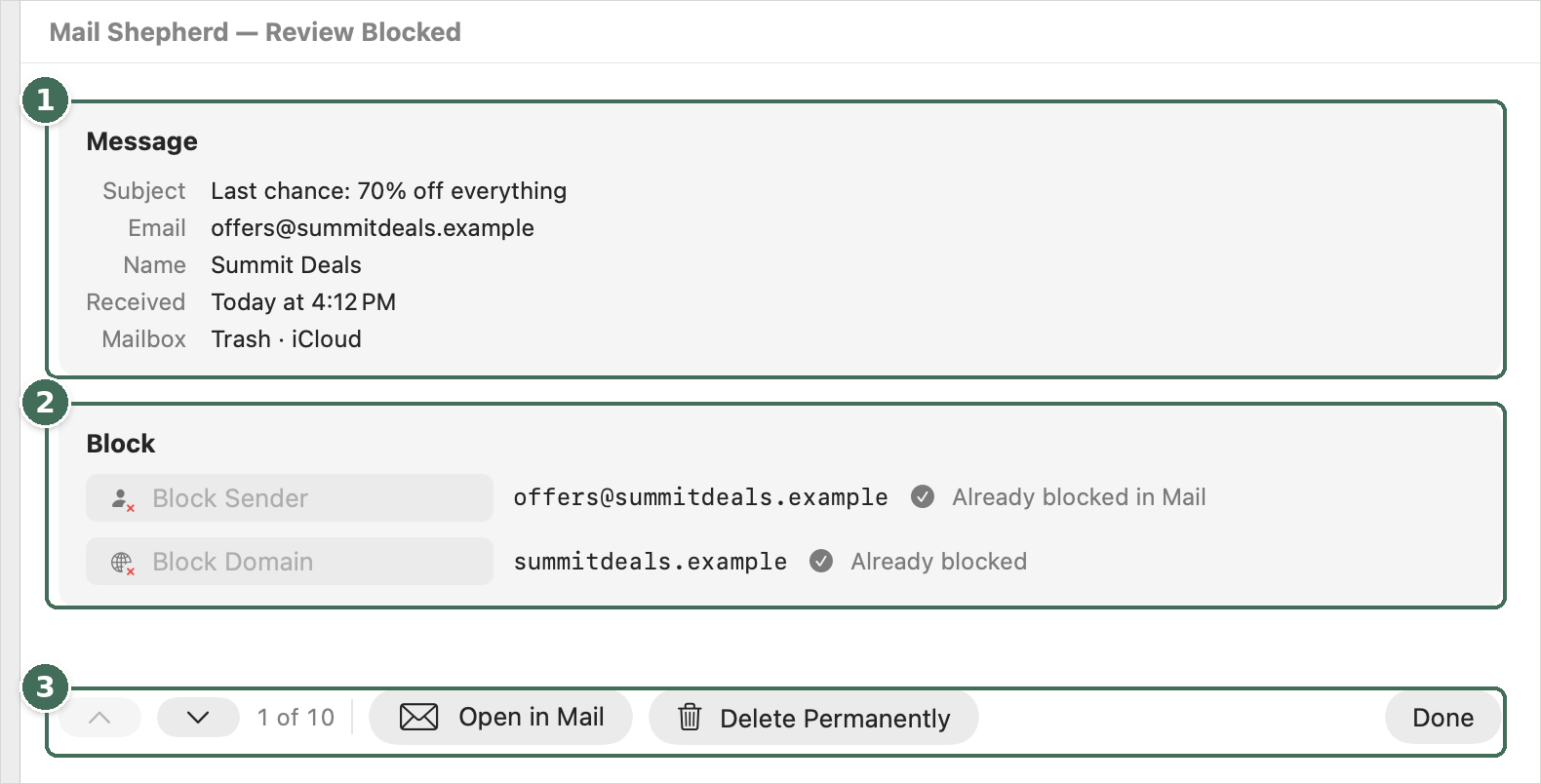
- The message.
- Block the sender or the sender’s domain, or see that it’s already blocked.
- Move through the list, open the message in Mail, delete it, or go back to the list with Done.
Message
One field per line: the Subject, the sender’s Email and Name, the Domain and Parent Domain (only when they differ, such as mail.shop.example and shop.example), when it was Received, and its Mailbox and account. On Review Junk, Marked Junk says whether Mail has it marked junk.
Block
Each row has a button, the address or domain it acts on, and a short note when it’s already blocked or can’t be used. Blocking happens at once, without asking.
- Block Sender adds the address to Mail Shepherd’s Blocked Senders. The sender’s messages on Review Junk are marked read, and those in Junk move to Trash, so they show on Review Blocked. It doesn’t use Mail’s window and doesn’t change Mail’s blocked list. When the sender is already blocked, the note says Already blocked in Mail or Blocked in Mail Shepherd.
- Block Exact Domain adds the sender’s domain (mail.shop.example) to your Blocked Domains, and Block Parent Domain adds its parent domain (shop.example), which covers all its subdomains. When the two are the same, there’s one Block Domain button. The domain’s messages move to Review Blocked at once, and the next Sweep handles its mail everywhere, including your Inboxes.
Shared email providers (such as gmail.com), mailing services and hosting services can’t be blocked as a domain; the note says which it is, and you can block the sender instead. A domain that’s already covered says Already blocked or Blocked by parent domain; in the second case you can still block the exact domain, so it stays blocked if the parent is unblocked. Without Contacts access, Block Sender and the Block Domain buttons are dimmed, so a contact’s mail can’t be blocked by mistake. Point at a dimmed button to see why.
Allow
On Review Junk only.
- Move to Inbox marks the message not junk and moves it to its account’s Inbox, then shows the next message.
- Add to Existing Contact… opens Contacts’ picker, and adds the sender’s address to the contact you choose. It needs Contacts access.
- Add as New Contact… opens the sender in Contacts as a new contact, for you to save.
Once the sender is in your contacts, their messages on Review Junk are marked not junk and moved to the Inbox. Mail’s junk filter also skips senders in your contacts by default, so their mail stops going to Junk.
The buttons at the bottom
- The up and down arrow buttons (or the ↑ and ↓ keys) show the message above or below this one in the list, and “3 of 10” shows where you are.
- Open in Mail shows the message in Mail’s window, and you stay on this page. Mail may mark it read.
- Delete Permanently asks first (“Delete This Message Permanently?”), then deletes the message from Mail for good. A message in Junk is moved to Trash first, then deleted from Trash. The next message’s details show, or the list after the last one.
- Done (Esc) takes you back to the list.
While an action runs, its progress and Stop show at the top of the page. A problem shows there as a warning icon; click it to open the Action Log.
Delete Permanently can’t be undone. See Deleting and Safety.
Was this page helpful? Tell us.